In short
The MyParcel plugin connects your Magento 2 shop to MyParcel. Customers pick a delivery moment or pickup point in the checkout, you print labels from the Magento admin, and Track & Trace is sent to the customer automatically. Built for shop owners and shop managers — no developer knowledge required after the initial Composer installation.
Quickstart — your first parcel in 15 minutes
Enough to ship your first real order today. For deeper configuration, see Looking for… below.
- Account. Don't have a MyParcel account yet? Create one at myparcel.nl/register.
- Copy the API key. Log in to backoffice.myparcel.nl → Shop settings → Integration → copy the API key.
- Install the plugin. Have your developer or hosting partner run
composer require myparcelnl/magento && bin/magento setup:upgrade && bin/magento setup:di:compile && bin/magento cache:flush. - Connect the plugin. Open Stores → Configuration → MyParcel → Settings, paste your API key into API key, click Save Config and then Import MyParcel Backoffice settings.
- First label. Open Sales → Orders → pick a paid order → Print MyParcel Label → check package type/options → Create.
You're done when you see this
- Under Stores → Configuration → MyParcel: you have a valid API key saved
- Carrier tabs appear after Import MyParcel Backoffice settings
- You can export a test order via Print MyParcel Label
Looking for…
| What do you want to do? | Go to |
|---|---|
| First-time setup | Quickstart |
| Recommended settings for your type of shop | 4 · Which shop profile are you? |
| General plugin settings | 5 · Settings · General |
| Carrier-specific options | 6 · Settings · Carriers |
| A different setting per product | 7 · Product settings |
| What the customer sees in the checkout | 8 · The checkout experience |
| Bulk processing for 50+ orders/day | 9 · Daily use |
| Something's not working | 10 · Something's not working — diagnostics |
| Answer to a frequently asked question | 11 · FAQ |
1 · Preparing your MyParcel account
Before you start in Magento, take care of four things in your MyParcel backoffice:
- Billing and return address — Shop settings → General. This appears on every label.
- Activate carriers — Shop settings → Carriers. Only enabled carriers appear in the plugin later.
- Generate an API key — Shop settings → Integration.
- Import order information (optional) — turn on if you want to use order mode.
2 · Installing the plugin
The Magento plugin is installed via Composer. Have your developer or hosting partner run the following commands on the server:
composer require myparcelnl/magento
bin/magento setup:upgrade
bin/magento setup:di:compile
bin/magento cache:flush
Hyvä checkout?
Also install the compatibility module alongside the above:
composer require hyva-themes/magento2-hyva-checkout-myparcelnl
bin/magento setup:upgrade
Is the old PakjeGemak module still running?
Disable it before starting with this plugin. Two MyParcel plugins running simultaneously leads to duplicate labels.
After installation, find the plugin under Stores → Configuration → MyParcel.
3 · Connecting the plugin (API key)
Open Stores → Configuration → MyParcel → Settings and paste your API key in the API key field at the top. Then click Save Config.
- Log in to the MyParcel backoffice.
- Go to Shop settings → Integration.
- Copy the API key (usually 40 characters).
- Paste it into Magento and save.
The Import MyParcel Backoffice settings button fetches your contract and carrier settings in one click. Carrier tabs only appear after this import.
 After a valid key, the carrier tabs appear.
Not working?
Most common causes: didn't click Save Config · a space copied before/after the key · key from a different shop · cache not cleared (bin/magento cache:flush).
What does the plugin do in your Magento admin?
| Where? | What can you do? |
|---|---|
| Stores → Configuration → MyParcel | All settings — Version and support and Settings (one tab per carrier). |
| Sales → Orders → [order] → Print MyParcel Label | Create a label for a specific order, including adjusting package type and options per order. |
| Catalog → Products → [product] → MyParcel Options | Product-specific settings (drop-off delay, age check, mailbox-fit, HS code, etc.) that override the global defaults. |
4 · Which shop profile are you?
Three typical profiles with recommended settings. Pick one, copy the settings, then fine-tune via 5 · Settings · General.
Small — a few orders per day, NL only
| Setting | Recommended | Why |
|---|---|---|
| Mode (Print settings) | Concept | Keeps you in control while you learn |
| Drop-off delay | 1 | Orders are processed the next day |
| Paper type | A4 | No label printer needed |
| Number of days | 7 | Customer can pick a week ahead |
| PostNL — Delivery enabled | Yes | Standard NL carrier |
| Insure orders from (€) | 250 | Parcels above €250 are insured automatically |
Busy shop — 50+ orders/day
| Setting | Recommended | Why |
|---|---|---|
| Mode (Print settings) | Direct | Faster — labels are final immediately |
| Paper type | A6 (Zebra/Brother label printer) | Faster printing |
| Drop-off delay | 0 (or 1 in peak) | Working days between order and drop-off |
| Bulk Create & print MyParcel track(s) | On | Process 50+ orders in one click |
| PostNL + DHL For You | Both on | Broad coverage |
| Automate signature on receipt — From price | 250 | Above €250 a signature is required |
Mailbox-only — coffee, cards, cosmetics
| Setting | Recommended | Why |
|---|---|---|
| Mailbox settings — Automate mailbox | Yes | Ship as mailbox parcel automatically when size/weight match |
| Mailbox weight | 2000 g (max) | Threshold weight for mailbox parcel |
| Per product Fit in mailbox | Realistic (e.g. 5) | Number of items per mailbox parcel |
| Pickup active | No | No pickup choice for mailbox |
| Insure orders | No | Not available for mailbox parcels |
Other scenarios?
For expensive jewellery, international, or special requirements — see 11 · FAQ or the more extensive shop profiles in the WooCommerce manual (applicable across platforms).
5 · Settings · General
The general tab handles the connection, shipping cost rules, delivery days, print settings and how the MyParcel block looks in the checkout.
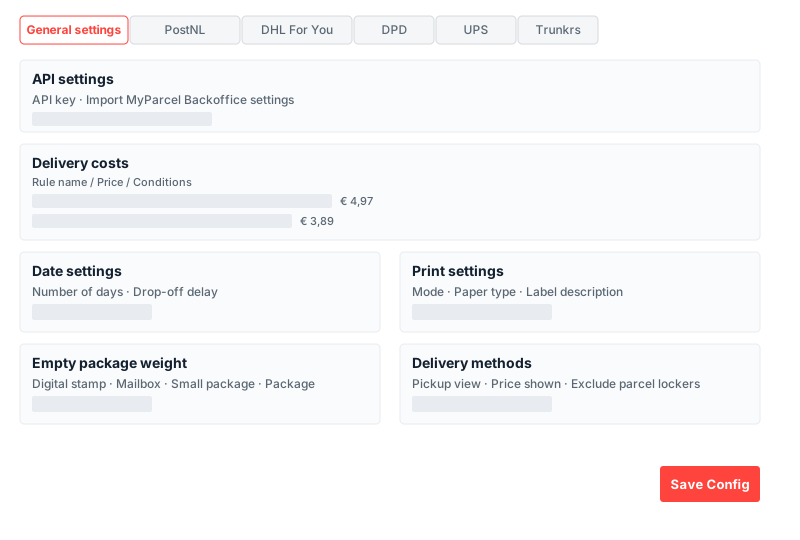
API settings
- API key — connects your shop to MyParcel. Without a valid key, delivery options don't work.
- Import MyParcel Backoffice settings — fetches your current contract and carrier settings from MyParcel.
Delivery costs
Define the shipping price customers see at checkout. Each rule has a Rule name, a Price and one or more conditions (weight, package type, country). E.g. "Mailbox parcel within Netherlands < 12 kg" with price €4.97.
- Show or hide JSON textarea — advanced view for editing rules as JSON.
- Use Free Shipping — respect Magento's free shipping rules.
Date settings
- Number of days — how many days ahead customers can pick a delivery day. Default 7.
- Drop-off delay — working days between order and drop-off. Set to 1 if you only process orders the next day.
Print settings
- Mode — Concept (first in MyParcel backoffice) or Direct (final immediately).
- Paper type — A4 (standard printer) or A6 (label printer).
- Label description — text on the label, with variables like
%order_nr%. - Country of origin — country of origin for international shipments. Default NL.
- Create Concept — labels first as concept so you can still adjust them.
- Return in the box — automatically includes a return label.
- I use the following weight type — gram or kilogram (the same unit as in Magento).
Empty package weight
Each package type has an empty weight; MyParcel adds it on top of the product weight.
| Package type | Typical empty weight |
|---|---|
| Package (brown box) | 200 – 400 g |
| Small package | 100 – 200 g |
| Mailbox (mailbox parcel) | 50 – 100 g |
| Digital stamp | 10 – 30 g |
Delivery methods
- Show details in summary — shows the chosen delivery option in the customer's order summary.
- Preferred pickup locations view — List or Map as default.
- Switching the view is allowed — let customers switch.
- Price shown in delivery options — show the surcharge per delivery option.
- Exclude parcel lockers — hide parcel lockers.
6 · Settings · Carriers
Each carrier has its own tab. Which tabs are visible depends on what's in your MyParcel contract.

All carriers are structured the same
Below I walk through PostNL as an example — other carriers follow the same structure, with their own specific options.
PostNL settings
Delivery titles
The wording your customer sees in the checkout. Defaults are fine unless you want your own phrasing.
- Delivery title — heading above the PostNL block. Default: Delivered at home or work.
- Standard / Signature on receipt / Receipt code / Home address only / Priority / Morning / Evening / Mailbox / Digital stamp / Pickup title — text per delivery option.
Drop-off days & Cut-off times
- Drop-off days — tick the days you drop off at PostNL.
- Cut-off time (per day) — until what time an order still goes the same day. Default 15:30.
Default shipping options
Apply options automatically above a threshold price.
- Automate 'Signature on receipt' + From price.
- Automate 'Collect package' + From price.
- Automate 'Home address only' + From price.
- Automate 'Larger than 100 × 70 × 58 cm' + From price.
- Automate 'Age check 18+'.
Insurance
- Insure orders from (€) — threshold above which the order is insured automatically.
- Insure orders up to (NL) / (BE) / (EU) / (ROW) — maximums per region.
- Insure orders for percentage — insure a % of the order value.
Delivery moments + shipping options — all fields
Digital stamp settings
- Automate digital stamp — ship as digital stamp automatically for light, flat products.
- Default weight — default weight for digital stamp shipments.
Mailbox settings
- Automate mailbox — ship as mailbox parcel automatically when weight and size fit.
- Mailbox weight — maximum weight (default 2000 g).
- Priority delivery (Prio 24 hour) + Priority delivery fee.
- International mailbox — mailbox parcels abroad.
Small Package settings
- Automate Small Package + Small Package weight.
Delivery moments
- Morning delivery active + fee.
- Evening delivery active + fee.
- Pickup active + fee.
Delivery settings
- Delivery enabled — PostNL master toggle.
- Signature on receipt + fee.
- Home address only + fee.
- Saturday delivery + fee.
Other carriers — differences in short
| Carrier | Notable details |
|---|---|
| DHL For You | Mailbox parcels supported. Pickup at DHL service point. No morning/evening delivery. |
| DHL Europlus | Business EU shipments. Insurance per region (Local/BE/EU/ROW). |
| DHL Parcel Connect | Consumer shipments within Europe. Pickup possible. |
| DPD | NL parcel + mailbox parcel (since v4.15). Pickup at DPD ParcelShop. |
| UPS Standard | International business. Fewer options, 3-day delivery window by default. |
| GLS | NL/BE. Signature, Only recipient, Saturday delivery. Pickup at GLS point. |
| Trunkrs | Fast NL carrier. Receipt code, Fresh food, Frozen, Priority delivery. |
7 · Product settings
Every product has a MyParcel Options section on its edit page. This overrides the global defaults from §6 per product — useful for products with special requirements.

- Drop-off delay — extra working days to pick this product. For made-to-order or dropship.
- Age check 18+ — requires an ID check. For alcohol, tobacco, knives. Cannot combine with morning/evening delivery.
- Fit in digital stamp — may this product ship as a digital stamp?
- HS code — customs code for worldwide shipments. Look up at tarief.douane.nl.
- Fit in mailbox — how many fit in one mailbox parcel?
0= automatic by weight,-1= doesn't fit in mailbox. - Disable delivery options — hides the MyParcel delivery options block when this product is in the cart. For digital products or gift cards.
- Exclude parcel lockers — hides parcel lockers as a pickup point for this product.
8 · The checkout experience
Once the customer fills in a delivery address, the MyParcel block appears with delivery options. Which options show depends on: the active carriers, the products in the cart, and the product-specific overrides from §7.
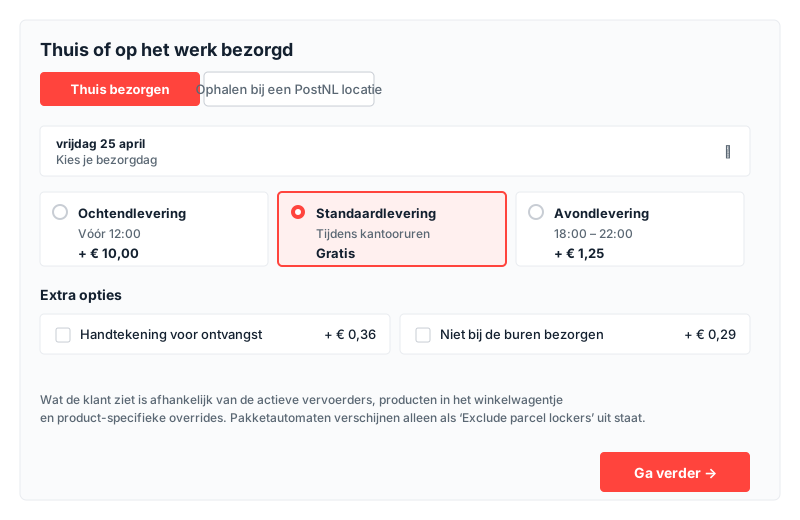
Delivery options
- Standard delivery — delivery during office hours.
- Morning delivery — PostNL delivers in the morning (surcharge).
- Evening delivery — between 18:00 and 22:00 (surcharge).
- Saturday delivery — only visible if enabled per carrier.
- Signature on receipt — courier asks the customer to sign.
- No delivery to neighbours — only to the recipient.
- 18+ ID check — appears automatically when a product requires it.
- Pickup at a PostNL location — list or map; parcel lockers depending on Exclude parcel lockers.
- Mailbox parcel — when the cart fits within the size limits.
- Digital stamp — for flat, light shipments.
- Prio 24 hour — priority delivery (only if activated).
9 · Daily use
Workflow 1 — per order
- Go to Sales → Orders and open an order.
- Click Print MyParcel Label.
- Optionally adjust package type, insurance or delivery options for this order.
- Click Create. The label is created in the MyParcel backoffice.
Workflow 2 — bulk (10+ orders/day)
- Go to Sales → Orders.
- Select multiple orders with the checkboxes.
- Under Actions → Create & print MyParcel track(s).
Track & Trace in confirmation email
Under Stores → Configuration → Sales → Sales Emails → MyParcel Track you set the tracking link in the shipment email. See FAQ for mail template conflicts.
When you're billed
You're only billed once a shipment is actually handed over to the carrier. Digital stamps are the exception — they are charged immediately on export.
10 · Something's not working — diagnostics
Something not behaving as expected? Run through this table top to bottom — three out of four issues are fixed within 5 minutes.
| Symptom | What to check |
|---|---|
| No delivery options in the checkout | (1) API key saved correctly? (2) At least one carrier with Delivery enabled = Yes? (3) Delivery address within Ship to Specific Countries? (4) bin/magento cache:flush |
| Cannot select MyParcel after another shipping method | Upgrade to v5.5.2 or higher; this has been improved in recent releases. Still happening: contact MyParcel support. |
| "This address can not be split" | Postal-code-checker plugin in use? Configure it so street and house number remain separate fields. |
| "API key invalid" | Space in the key? Key from the right shop? Copy again from the MyParcel backoffice Shop settings → Integration and paste. Clear cache. |
| "Can't get setting with path" in logs | Carrier in logging but not active — harmless message. Will be addressed in newer releases. |
| Shipping methods keep loading | Another shipping method active with Show Method if Not Applicable = Yes? Turn that option off. |
| Labels don't match the settings | Click Import MyParcel Backoffice settings again. After upgrade: flush cache. |
| Hyvä checkout — delivery options don't appear | Compatibility module installed? composer require hyva-themes/magento2-hyva-checkout-myparcelnl |
11 · FAQ
How do I change the package type for one specific order?
Open the order, click Print MyParcel Label and adjust the package type in the popup before creating the label.
Can I use multiple carriers at once?
Yes, if they're in your MyParcel contract. Activate each carrier in its own tab. Customers will then see multiple delivery blocks at checkout.
I don't want to offer parcel lockers — can I disable them?
Go to General settings → Delivery methods → Exclude parcel lockers. You can also set this per product via Exclude parcel lockers on the product edit page.
Does the plugin work with third-party checkouts?
Officially supported: standard Magento checkout and Hyvä checkout (with the hyva-themes/magento2-hyva-checkout-myparcelnl module). Other checkouts may not work fully — always test before going live.
How do I roll back to an older version?
Composer: composer require myparcelnl/magento:5.4.0 followed by bin/magento setup:upgrade and cache:flush. Report the bug at github.com/myparcelnl/magento/issues.
My customers don't get delivery options when they fill in their postal code first
Known issue with some postal-code-checker plugins. Configure the checker so street and house number remain separate fields.
How do I change the sender address on the label?
The sender address comes from your MyParcel backoffice (Shop settings → General), not from Magento.
Does the plugin cost money?
No. You only pay for the shipments via your MyParcel rate.
Resources & support
- github.com/myparcelnl/magento ↗ — source code, releases, issues.
- developer.myparcel.nl — Magento 2 ↗ — official installation and configuration manual.
- backoffice.myparcel.nl ↗ — account, API key, billing.
- Contact MyParcel support — 023 - 30 30 315 · info@myparcel.nl.